How We Run Regression: Organizing Scenarios and Using the Dashboard
Organize BDD scenarios for smoke and full regression, use the Gwirian project dashboard to track health and gaps, and automate runs with an LLM using gwirian-cli and the Gwirian skill.
Regression suites grow fast. You need a clear way to organize what to run, when to run it, and where to see results. This post covers how we organize scenarios for regression, how we use the Gwirian project dashboard to track health and gaps, and how we automate runs with an LLM using gwirian-cli and the Gwirian skill so results show up in that same dashboard.
Part 1: Organizing scenarios for regression
Smoke vs full regression
A smoke set is a small subset of scenarios that cover critical paths: login, key flows, or the features you must not break before a release. Run it often—for example on every PR or before each deploy. A full regression is the entire suite across all features; you might run it nightly or before a major release.
Define which scenarios belong to smoke by grouping them under a dedicated feature (e.g. “Smoke”) or by naming convention, and keep the rest in feature-based groups. That way you can ask your automation to “run smoke” or “run all” without guessing.
Structure in Gwirian
In Gwirian, features are the logical groups (e.g. “Login”, “Checkout”, “Project Boards”). Under each feature you add scenarios with Given/When/Then steps. Organize so that:
- Critical path scenarios sit in one or two features you treat as smoke.
- The rest are grouped by product area or user journey.
You get one place to search, filter, and—with the CLI—to drive automation by project, feature, or scenario list.
Prioritization
When time is short, run in this order: failing scenarios first (to confirm fixes), then untested or long-untested ones, then the rest. The dashboard (Part 2) shows exactly which scenarios are failing and which haven’t been run recently, so you can decide “run only failing + untested” or “run smoke” vs “run all.”
Single source of truth
Scenarios live in Gwirian. The same list is what you search in the UI, what the dashboard aggregates, and what an LLM fetches via gwirian-cli to run and record results. One source keeps regression and reporting in sync.
Part 2: Using the project dashboard
The Gwirian project dashboard gives you pass rate, total scenarios, failed and untested counts, feature-level coverage (passed/failed/pending per feature), and execution trends over 30 days. It’s the place to see what’s healthy, what’s broken, and what hasn’t been run lately.
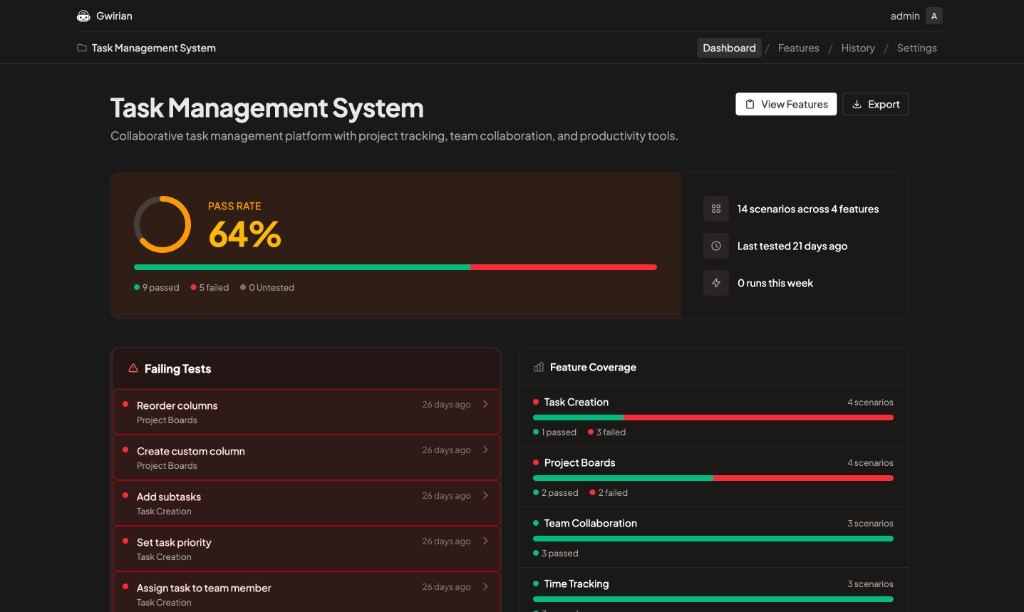
Project dashboard: pass rate, scenario counts, failing tests, and feature coverage.
At the top you see the pass rate ring (e.g. 64% with 9 passed, 5 failed, 0 untested) and a short summary: how many scenarios across how many features, when the project was last tested, and how many runs this week. Below that, the Failing Tests panel lists each failing scenario with its feature name and how long ago it failed—so you can fix or re-run by name. The Feature Coverage panel shows each feature with a bar and counts (e.g. 4 scenarios, 1 passed, 3 failed), so you can spot which areas need attention.
How to use it for regression
- Before a run: Check what’s untested or long-untested and what’s currently failing. Use that to choose “run smoke,” “run all,” or “run only failing + untested.”
- After a run: Confirm pass rate and trends; drill into failed scenarios and feature coverage to decide what to fix next.
- Deciding what to run: Combine the three panels—pass rate, failing list, and feature coverage—to pick a subset or the full suite.
The dashboard is also where automation results land. When an LLM runs scenarios via gwirian-cli and records pass/fail, those executions show up in the history and update the dashboard. So the same view works for manual and automated runs.
Part 3: Automating regression with an LLM, gwirian-cli, and the Gwirian skill
You can run a subset or full regression from your editor or terminal, with no need to click through the UI. An AI assistant uses gwirian-cli and the Gwirian skill to fetch scenarios from Gwirian, run them (e.g. in a browser with Playwright), and record each result. Outcomes appear in Gwirian’s execution history and on the project dashboard—pass rate, trends, and failing/untested counts stay up to date.
What you need
- gwirian-cli — Terminal access to the Gwirian API: list projects, features, and scenarios, and create scenario executions (pass/fail).
- Gwirian skill — Installed with
gwirian install --skillsso the LLM knows when and how to call the CLI (list scenarios, record executions). - For browser-based runs: Playwright CLI and an orchestration skill (e.g. gwirian-feature-tests). The LLM uses gwirian-cli to fetch scenarios and record results, and Playwright to drive the browser.
Flow in short
- You ask the LLM (e.g. “Run smoke regression for Project X” or “Run all scenarios in the Checkout feature on staging”).
- The LLM uses gwirian-cli (via the Gwirian skill) to list projects, features, and scenarios and to read project context (URLs, login steps).
- The LLM runs each scenario (e.g. with Playwright), then records each result with
gwirian scenario-executions create ... --status passedor--status failed. - Results appear in Gwirian’s execution history and on the project dashboard (pass rate, trends, failed/untested).
Example prompts
- “Run all scenarios in the Login feature on production and record results.”
- “Run the smoke scenarios for Project X on staging.”
For full setup—installing gwirian-cli, Playwright CLI, and the orchestration skill—see Automate BDD Tests with Gwirian, Playwright, and a LLM. This article focuses on the regression workflow and dashboard, and on the role of gwirian-cli and the Gwirian skill in that workflow.
Summary
- Organize scenarios by feature (and optionally smoke/critical); use the dashboard to see pass rate, gaps, and trends.
- Use the dashboard before and after runs to decide what to run and what to fix.
- Automate runs with an LLM using gwirian-cli and the Gwirian skill (and Playwright + orchestration skill for browser); results flow into the same dashboard.
Try Gwirian free—no credit card required. For more on features and automation, see the Features page and the automation tutorial.